


Para redirigir el tráfico de un dominio hacia una URL externa o interna, debe utilizar la herramienta Redirecciones ubicada en su panel de control. Este procedimiento es fundamental para mantener el posicionamiento SEO y mejorar la experiencia del usuario al migrar contenidos.
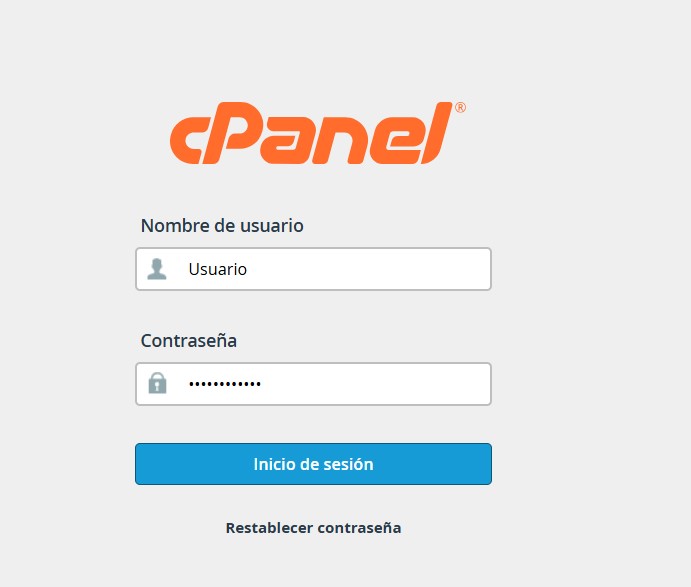
1. Inicie sesión en su cuenta de cPanel con sus credenciales enviadas.
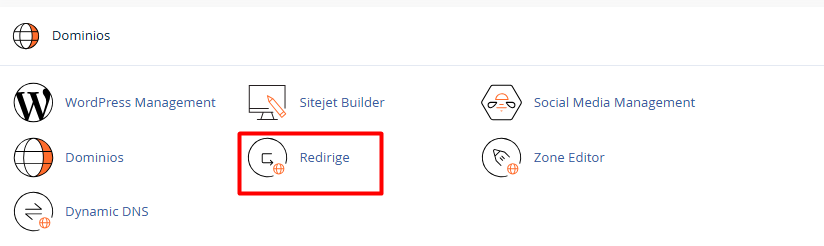
2. Diríjase a la sección Dominios y seleccione la opción Redirecciones.
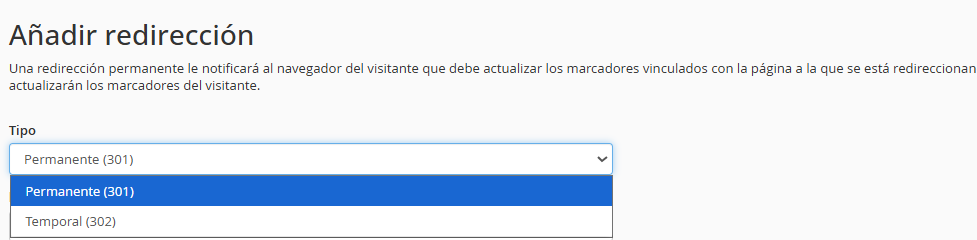
3. Configuración del tipo de enlace:
3.1. Permanente (301): Utilice esta opción para informar a los motores de búsqueda que el contenido se ha trasladado de forma definitiva.
3.2. Temporal (302): Seleccione esta alternativa si el cambio es momentáneo y desea conservar el indexado original.
4. Definición de origen y destino:
4.1. En el menú desplegable, elija el dominio que desea desviar.
4.2. En el campo "Redirecciona a", ingrese la URL de destino completa, asegurándose de incluir el protocolo correspondiente (ejemplo: https://nuevodominio.com).
4.3. Gestión de prefijos (www): Se recomienda seleccionar la opción "Redirigir con o sin www" para garantizar que todos los usuarios lleguen al destino independientemente de cómo escriban la dirección.
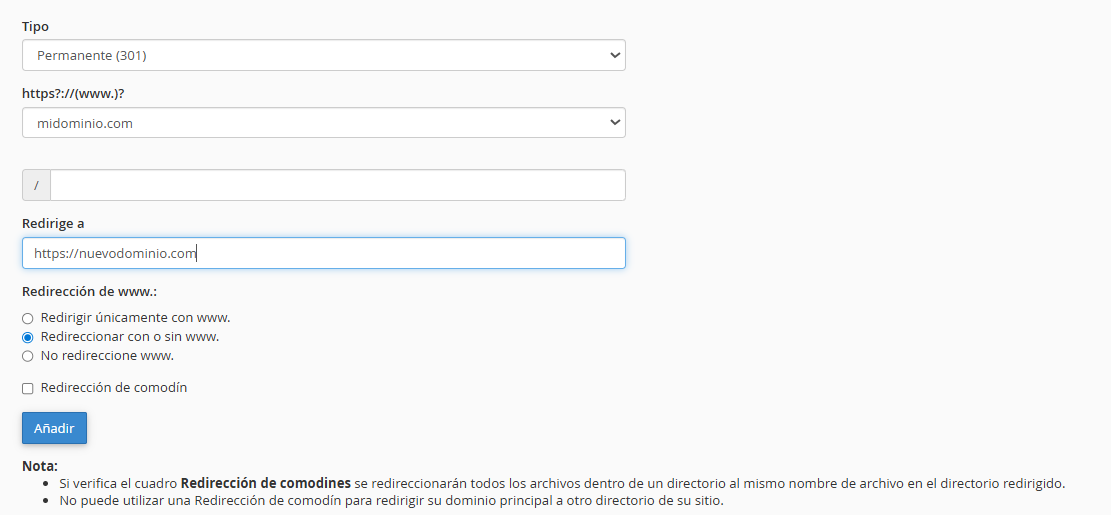
Haga clic en el botón Añadir.
• Redireccionamiento de comodín (Wild Card): Al activar esta casilla, se asegura de que cualquier subdirectorio del dominio antiguo (ej. ://antiguo.com) redirija exactamente a la misma ruta en el nuevo dominio (://nuevo.com).
• Administración de registros: En la parte inferior de la misma interfaz, encontrará un listado de las redirecciones activas, donde podrá supervisar su funcionamiento o eliminarlas según sea necesario.