


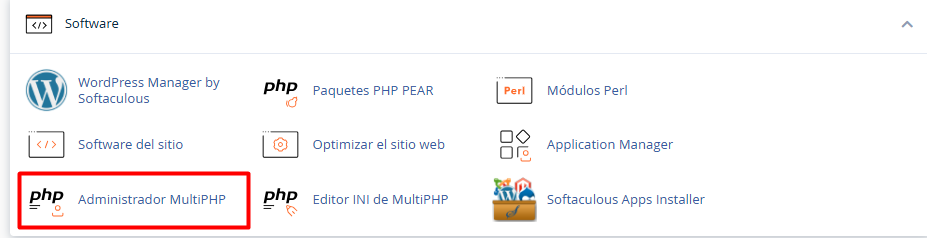
1. Ingresa a tu cPanel y, dentro del apartado Software, selecciona Administrador de MultiPHP.
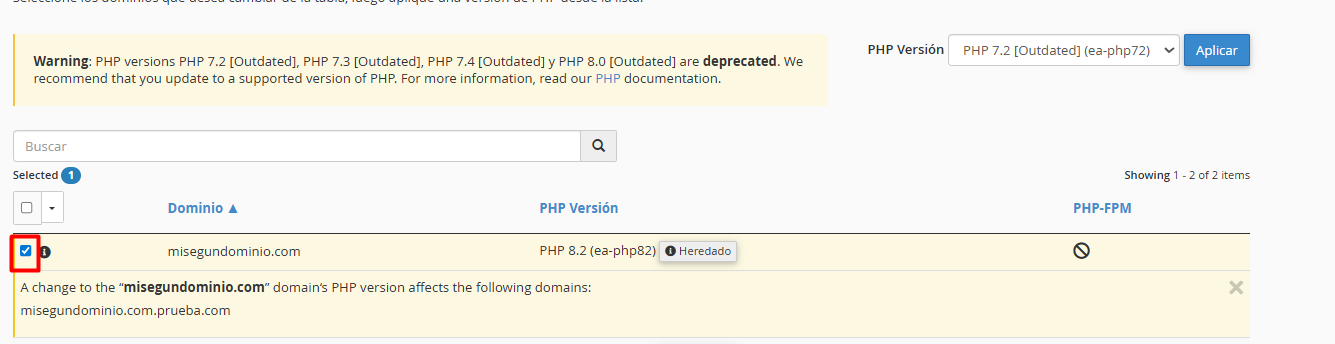
2. Identifica el listado de tus dominios y marca la casilla del dominio o subdominio que deseas actualizar.
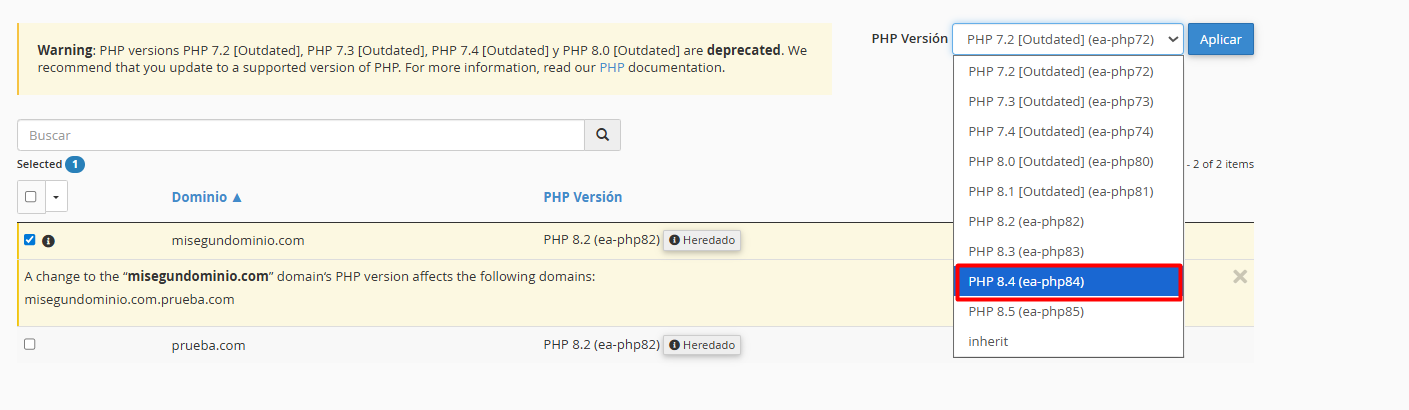
3. En el menú desplegable ubicado en la parte superior derecha (Versión de PHP), elige la versión técnica que requiera tu proyecto.
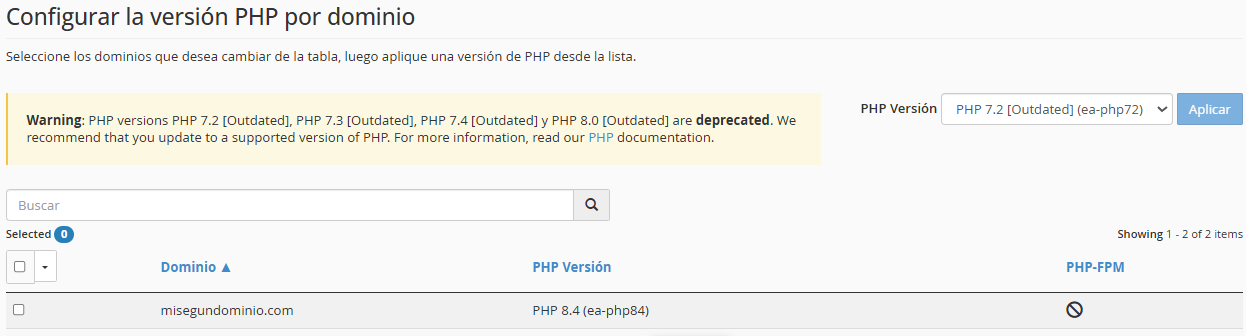
4. Haz clic en el botón Aplicar. El sistema te notificará de inmediato que la actualización se ha completado con éxito.
• Respalda tu información: Antes de cualquier cambio estructural, asegúrate de contar con una copia de seguridad reciente.
• Verifica la compatibilidad: Si utilizas CMS como WordPress, confirma que tus temas y plugins sean compatibles con versiones superiores (como PHP 8.x) para evitar errores visuales o de ejecución.
• Ajuste reversible: ¡No te preocupes! El proceso es instantáneo. Si notas algún comportamiento inusual, puedes regresar a la versión anterior repitiendo estos mismos pasos.